 |
| Setup Instructions |
|
1. Call our office at 858-536-1115 to open an account and obtain a username and password
We will NOT ask for your credit card or any other billing information at this time. All we need to know is what username and password you want to use and your phone number so we can contact you. If you decide to keep the service, then we will work out the billing details.
-
Download the client software HERE.
-
If you want to perform the installation now, choose OPEN. If you want to save the file for installing later, choose SAVE and be sure to save to a location you can later find (such as your desktop)
-
If you chose SAVE, minimize this window and look for the program "backupclient.exe" on your desktop.
-
Double-click the file to start the installation.
-
Follow the screenshots below to complete the installation.
2. Click OK

3. Click NEXT

4. Click NEXT to accept the default location

5. Click NEXT to accept the default folder name

6. Click NEXT to install the program as a service (this is the most common scenario)

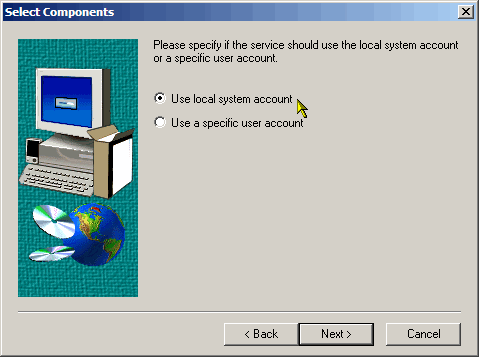
7. Click NEXT to install using the local system account (this is the most common selection)
The other setting is if you are on a Domain or have limited user rights. In that case you or your system administrator has to enter the name of the administrator account and password in the box that follows.
8. Click NEXT to complete the initial installation

9. After you click on Finish above, the program will start and continue with the configuration steps. Click NEXT.

10. Click NEXT

11. Click NEXT

12. Enter the username and password you obtained from us

13. Click NEXT

14. Click "Test Connection to the Backup Server" to see if the program can communicate with our server

15. If everything is correct, you are to be congratulated! Click OK, then NEXT

16. Click NEXT. The name of your backup set will default to the name of your computer

17. Click "Create a backup schedule now"

18. Click NEXT. The default schedule name is "My Schedule"

19. Click NEXT. The name of your computer will appear in place of "EXAMPLE" below

20. Click NEXT to accept the default of "Daily backup". This is the most common kind of backup

21. Click NEXT to perform a weekday backup. If you want to backup on weekends too, choose the other option.

22. Click NEXT to backup once each day.
If you want to backup multiple times per day, choose the other option and create an appropriate schedule that meets your needs.

23. Select 10:30 pm as your backup time. Be sure to specify PM then click NEXT
This computer must be left on all the time since it is hosting the backup application. Please close out of all your programs to insure a successful backup.

24. Click NEXT

25. Click FINISH. You are now done with the schedule setup!

26. Click NEXT

27. Click NEXT if you want to use your username and password as the secret key
Since we created your account, we have your username and password on file to allow us to recover files for you in the event you need them. If you want total security so that even we don't have access to your files, select "Set a special secret key to encrypt my files". This will allow only you to unlock the files using your special key. WARNING: If you loose this key, the files will not be recoverable in any way by anyone. Use this option with caution and be sure someone or several people at your location has the special key.

28. Click FINISH. You are done with most of the setup. Just a few more steps and you'll be truly done!

29. Now we need to setup the email notification part. On the main screen, navigate the menus shown below
This is a critical part of the setup process. Email notification is how you and we know the system is working properly. Following each backup, the program will send an email to you and to us with the complete backup details. We look at these emails which list all the files that were backed up to insure things are working properly.

30. Click the MAIL tab

31. Enter the email address where you want to receive these notifications
Most of the settings on this screen are already entered for you. In place of "your email goes here", enter the email address where you want the notifications to go. It could be either your address or the address of someone at your location who is to be responsible for checking up on the backup. Under Username, enter "backupcustomer@istcomputers.com" and under Password enter "backupcustomer", of course without the quotes. Leave the other settings as they are and click "Send Test Mail" to test email notification.

32. Click OK to close the box and then click OK again to close the backup options window.
At this point, you should check your email (or have the person whose email you entered check their email) for the test message.

33. Next is arguably the most important part of the whole setup... Choosing what to back up.
The image below shows an example of the left-hand pane of the backup program. Of course yours will look different because you have different files and folders that our example computer. Select the directories you want to back up.

34. Look at the bar at the bottom of the screen as in the figure below.
The number at far left shows how much storage you have already used on our server. The item in the middle shows how many files you have selected and the number on the right shows how many MB the files you have selected occupy. Note that the "Kilobytes selected" is uncompressed. This means that this is the real size of your selected files. Before the backup is sent to our servers, the files are compressed. Typically, they compress 2:1 so if you have chosen our 1 GB plan, you can select up to 2 GB (2000 MB) of files. Also note that there has to be some room left over for previous versions so in reality you should choose around 1.5 GB. We will figure out how much actual space you need after about 1 week of backups. If your file selection exceeds your account limit, we can either remove files from your backup or increase your account limit.

^ back to top ^
|
| Powerful, Innovative Backup |
|
|
